
Creating a custom dashboard for cTrader can be a powerful way to monitor market conditions, trading signals, sentiment, or account information from one place. The challenge is that building a dashboard normally requires knowledge of C#, the cTrader Algo API, and user interface design.
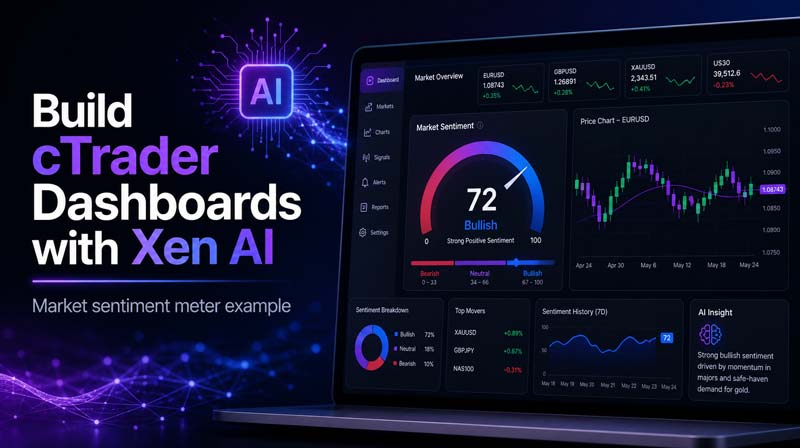
In this video guide, we show how to build a custom cTrader market sentiment dashboard using Xen AI.
Watch the Video Guide
Building a Market Sentiment Dashboard for cTrader
In the video, we demonstrate how Xen AI can help create a market dashboard for cTrader, using a market sentiment meter as the example. The dashboard is designed to provide a clear visual read of market sentiment, making it easier to determine whether the market bias is bullish, bearish, or neutral.
Instead of starting with a blank code file, you can simply explain what you want the dashboard to show. Xen then helps generate the structure, layout, and code required for the cTrader dashboard.
Describe Your Dashboard in Plain English
One of the main advantages of Xen AI is that you do not need to start with technical code instructions.
You can describe the dashboard in plain English, including:
- The dashboard layout.
- The type of meter or visual display you want.
- Labels, colours, and sections.
- Market data or sentiment values.
- Buttons, panels, or controls.
- Future features you may want to add later.
This makes the workflow much easier for traders who understand what they want to build, but do not want to write the full C# code manually.
Upload a Screenshot as a Visual Reference
Xen AI can also work from a screenshot.
If you have seen an existing dashboard, panel, meter, or trading interface that you want to use as inspiration, you can upload the screenshot and explain what each section should do. This is useful when you already have a visual idea but need help converting it into a working cTrader dashboard.
For best results, the first stage should focus solely on the user interface. Once the layout is correct, you can then continue adding market data, calculations, buttons, and trading logic in later steps.
Save the Dashboard as a Xen Project
The video also shows how to save the dashboard as a Xen project. This is important because custom trading tools are usually built in stages. You may start with the dashboard layout, then return later to add more features, improve the design, connect indicators, or include alerts. Saving the project lets you continue enhancing the dashboard without starting over.
Try Xen AI
You can try Xen AI here:
You can also read the Xen AI user guide here: