
Building a MetaTrader 5 Expert Advisor starts with a trading idea and clear rules. You might know when you want to enter a trade, when to close it, and how much to risk, but you need help turning those decisions into MQL5 code. Xen AI lets you describe your strategy in plain English and develop it into complete Expert Advisor source code. You can build a first version, request changes, check compiler errors and compare the implementation with your requirements before testing it in MetaTrader 5.
Watch the tutorial
The video below uses an EMA crossover strategy to demonstrate the process. This guide explains the wider workflow, including when to use Prompt Builder and how to bring your Strategy Tester results back to Xen for analysis.
Start with £5 Free AI Credit
Eligible new users can claim £5 in free Xen AI credit to start building. Create an account, open the workspace and describe your trading idea. Claim your £5 free AI credit
How to get started
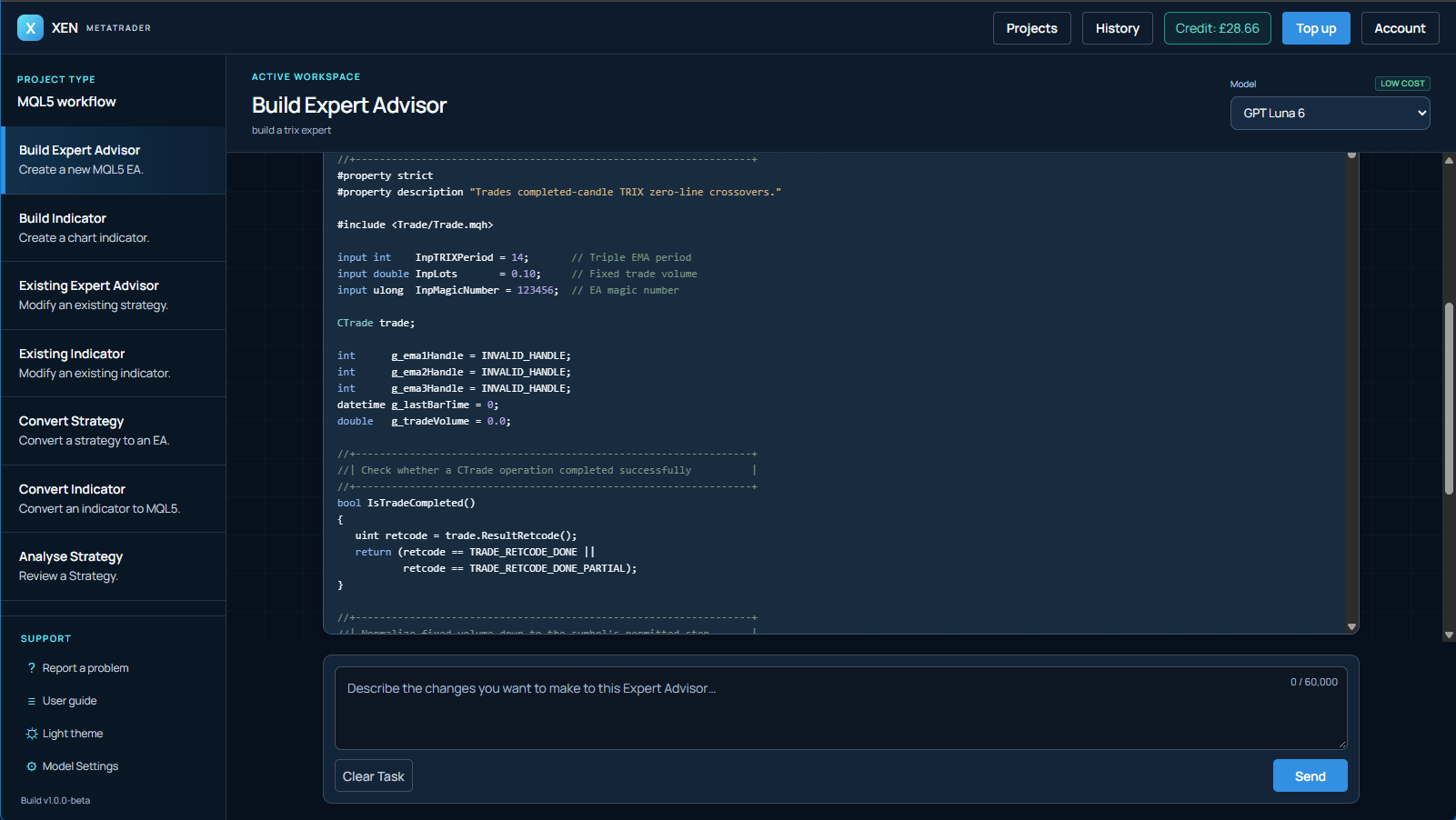
Open Xen and select Build Expert Advisor. This task creates automated trading systems for MetaTrader 5, including the entry logic, exits and position management you request. For an EMA crossover strategy, explain which moving averages to use and what counts as a crossover. Specify whether signals should be confirmed after a candle closes or evaluated while the candle is forming.
Then describe the trading behaviour. Should the EA take both buy and sell trades? What should happen to an open position when an opposite signal appears? How should the EA calculate position size, and should it use a stop loss or take profit?
These details affect the strategy you will test. Include the protections you want explicitly rather than assuming they will be added automatically.
How to describe your strategy
You do not need programming terminology to explain a strategy. Write down the rules as clearly as you would explain them to someone who needs to follow them exactly.
For example, this request provides a defined starting point for an EMA crossover EA. The settings are illustrative, so adjust them to match the strategy you want to investigate.
Build a MetaTrader 5 Expert Advisor using a 20-period fast EMA and a 50-period slow EMA, calculated from closing prices on the current chart timeframe.
Confirm crossovers using the two most recently completed candles and check for a new signal once per new bar. Buy when the fast EMA crosses above the slow EMA and sell when it crosses below.
Allow only one position belonging to this EA on the chart symbol. On an opposite crossover, close that position before opening a trade in the new direction.
Use a configurable fixed lot size, stop loss and take profit. Express the stop distances in points. Make the EMA periods and magic number adjustable inputs, and manage only positions belonging to this EA.
Select Send to begin. Xen is designed to return a complete .mq5 Expert Advisor rather than code fragments you must assemble yourself. Review the explanation and any assumptions alongside the generated source.
Planning complex expert advisors
A conventional EMA crossover request can usually proceed directly to implementation. You do not need a Build Plan simply because some ordinary settings were left unspecified.
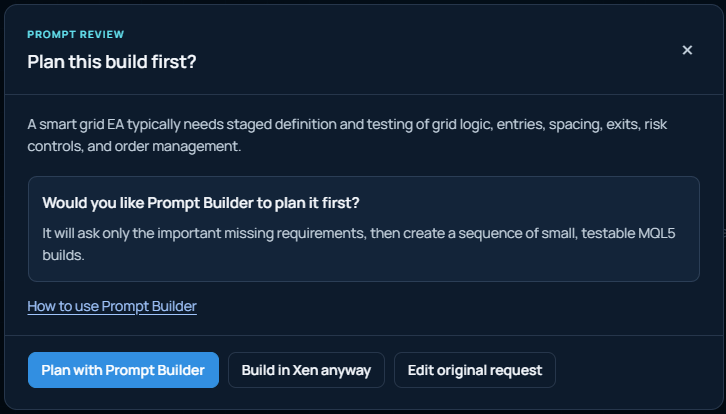
More complex strategies may benefit from Prompt Builder, particularly when several dependent rules still need defining. Examples include multiple entry systems, different position management modes, or several interacting exit conditions.
When Xen suggests planning the build, select Plan with Prompt Builder. Answer the focused questions yourself, or use Let Xen Answer for Me to receive editable suggestions. Review those answers before creating the plan.
The resulting Build Plan separates development into smaller stages. Review the assumptions, start the plan and work through each stage in order, testing the current version before adding more behaviour.
Adding more features
Use the conversation to make focused changes. For example, ask Xen to add a trading session filter while preserving the existing crossover rules, exits and position sizing. Changing one aspect at a time makes each revision easier to assess. It also helps you identify which change caused a difference in your test results.
If you are bringing an existing project into Xen, select Existing Expert Advisor and share the complete current source. Describe what should change and which behaviour should remain intact.
Projects and History help you return to saved work and inspect earlier source snapshots. Keep track of the version used for each backtest so that you can connect a result with the code and settings that produced it.
Checking for errors
Select Check for Errors to request a MetaEditor compilation check. Review the reported errors and warnings before moving on to testing.
If compiler errors remain, the result can offer Continue repair. This prepares a repair request using the source and the compiler diagnostics. Review and send it, then check the corrected version.
You can also compile locally in MetaEditor and share the exact error messages with Xen. Include the complete source you compiled so that the messages correspond to the code being repaired.
Some bugs only appear when the EA runs. If it opens a duplicate trade or misses an expected crossover, describe the symbol, timeframe, settings and relevant candle times. Include useful Journal or Experts messages and explain what should have happened.
Verify your requirements
Compilation checks whether MetaEditor accepts the code. Verify requirements provides a separate review of whether the source appears to implement your requested behaviour. Before running verification, review the requirements shown in the dialogue. For the crossover example, these should cover the EMA settings, completed-candle timing, trade direction, position limit, exits and adjustable inputs.
The report identifies implemented, partially implemented and missing requirements. If an explicit requirement needs attention, Repair missing requirements prepares a focused follow-up request for you to review and send.
Requirements verification is a static source review. Its match score does not establish profitability or prove that the EA behaves correctly when running. Compile and test the revised version after any repair.
Exporting to MetaTrader
Select Download .mq5 to save the Expert Advisor source. Add it to the MQL5 > Experts folder in your MetaTrader 5 data directory and compile it in MetaEditor. Use the MetaTrader 5 Strategy Tester to investigate the EA's behaviour. Start by checking individual trades rather than judging the strategy by its final balance alone.
For an EMA crossover, confirm that entries follow the requested completed-candle signals, that the EA respects its position limit and that opposite signals produce the intended exit or reversal. Check position sizes and stop distances against your inputs.
Test across different periods and use realistic trading costs. Follow historical testing with demo testing before considering live use. A successful compilation or profitable backtest does not guarantee future trading results.
How to Analyse the strategy
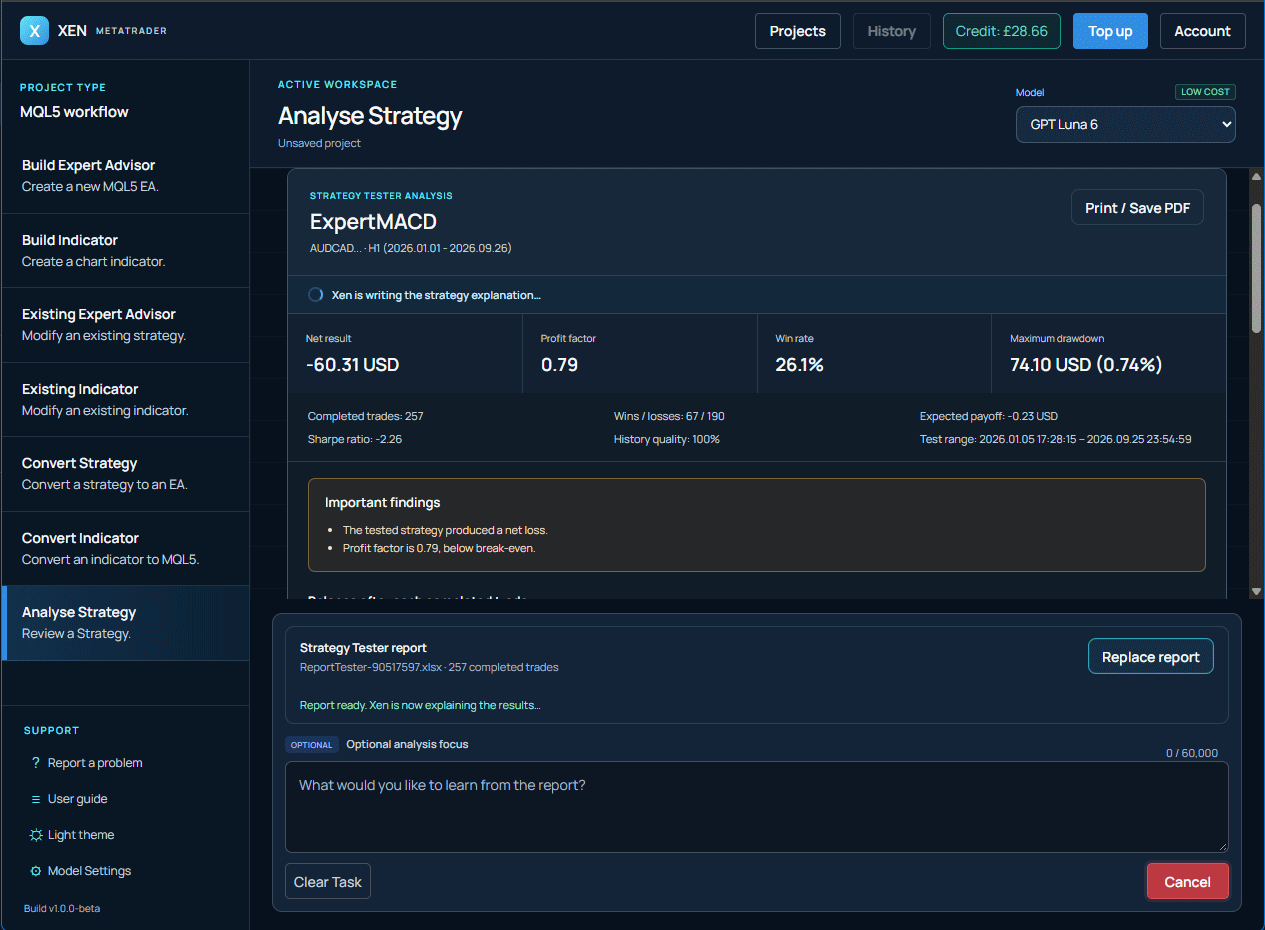
Once you have a Strategy Tester report, return to Xen and select Analyse Strategy. Add the report and explain what you want to investigate, or use Explain Results for an initial review. Xen can review the supplied evidence for issues such as drawdown, trade count, average wins and losses, or differences between buy and sell performance.
A useful follow-up might be: “What are the main weaknesses in this test, and what should I test next?” The aim is to identify questions worth investigating rather than assume that a single report establishes a reliable strategy.
How to export a Strategy Tester report
If the analysis leads to a code change, return to Existing Expert Advisor with the version you tested. Request a focused update, verify it and run a fresh test. Analyse Strategy reviews your results; code changes belong in the development workflow.
Turn Your Idea into an EA
Open Xen, select Build Expert Advisor and describe your trading rules. Launch Xen AI for MetaTrader 5