
Xen AI for MetaTrader 5 lets you describe an idea and develop it into a custom indicator. You can explain the calculations, choose how the results should appear and refine the generated source through a conversation. We will cover the workflow, describing an indicator, planning a larger build, sharing reference images, fixing problems, and exporting the finished source to MetaTrader 5.
Watch the tutorial
Follow the video walkthrough, then use the guide below as a reference when creating your own indicator with Xen AI.
Start with £5 Free AI Credit
Create an account and claim £5 in free Xen AI credit to start developing your own indicators. Introductory credit is subject to eligibility. Claim your £5 free AI credit
How to get started
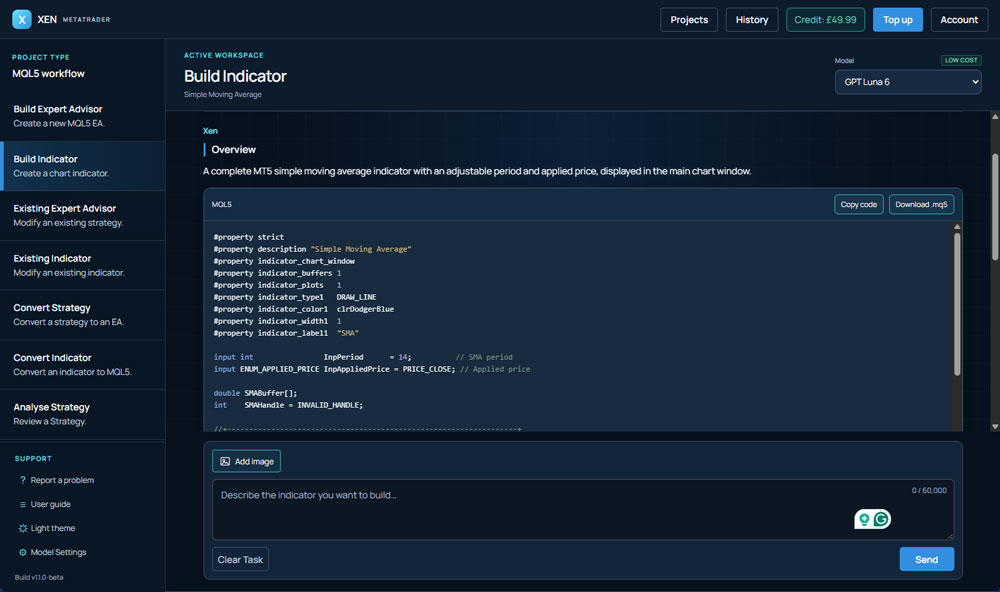
Open the Xen workspace and select Build Indicator. This task creates chart indicators, including lines, histograms, signals and alerts. Automated trade execution belongs in the separate Build Expert Advisor task.
Start by explaining what the indicator should calculate and display. Say whether it belongs on the main price chart or in a separate window, which settings should be adjustable and what any colours, arrows or labels should represent.
Signal timing matters, too. If a signal must wait until a candle closes, include that instruction. If the current candle should update continuously, explain that instead.
Create a MetaTrader 5 indicator that displays the highest high and lowest low of the previous 20 completed candles as two lines on the main chart. Exclude the current candle from the calculation. Make the lookback period adjustable, use blue for the upper line and red for the lower line, and update the levels when a new candle opens. Do not add alerts or place trades.
This gives Xen a calculation, a display style and an update rule to implement. You can begin with a smaller request, but clear instructions make the result easier to review.
How to create complex indicators
A straightforward indicator can usually begin with a direct build request. More involved ideas may need a few decisions before development starts, particularly when they combine several calculations, multiple timeframes, dashboards or dependent alert rules.
When appropriate, Xen can suggest Prompt Builder. It asks focused questions about important missing requirements, then uses your answers to prepare a staged Build Plan.
You can write the answers yourself or select Let Xen Answer for Me to receive editable suggestions. Review those suggestions before creating the plan so that the proposed behaviour reflects your idea.
The plan separates development into smaller builds. Review the basic calculations and plots first, then add the remaining features in order. Prompt Builder is optional when suggested; it is not a required step for every indicator.
Share an image
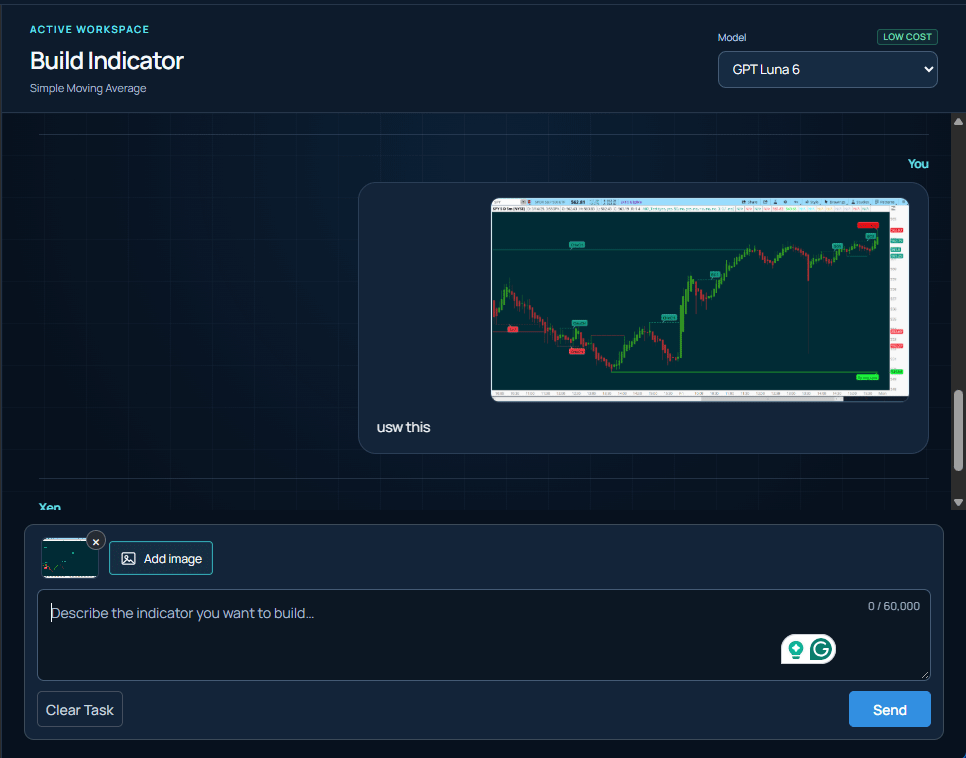
Sometimes a screenshot communicates a design more clearly than a long description. Use Add image in the indicator workspace to share a visual reference alongside your instructions.
Explain which details matter: line colours, thickness, labels, panel placement or the position of signal arrows. For example, you might ask Xen to follow a screenshot's layout while using the calculations you describe in your message.
An image cannot reveal exact periods, proprietary formulas or hidden signal rules. Supply those details in writing rather than expecting Xen to recover them from the appearance of a chart.
Xen generates complete MQL5 indicator source rather than individual lines for you to assemble; read the response and review any assumptions before asking for the next change.
Keep revisions focused by asking Xen to change the plot colours while preserving the calculation, or add an alert without changing the existing signals. This makes it easier to see what each revision affects.
For an indicator you already own, select Existing Indicator and share the complete current source. Describe the changes you want so Xen can work from the actual implementation.
Fix any problems
Use Check for Errors to request a MetaEditor compilation check. If errors remain, the build result can offer Continue repair to prepare a repair request using the source and compiler diagnostics.
If you compile locally, share the exact MetaEditor error messages and the complete current source. This gives Xen something concrete to investigate.
Chart behaviour needs different evidence. If an arrow appears on the wrong candle or a line stops updating, provide a screenshot, the symbol and timeframe, and an example of what happened compared with what you expected. Ask Xen to correct that behaviour while preserving the working parts.
Verify your requirements
After several changes, it can become difficult to remember whether every requested feature is still present. Select Verify requirements to compare the generated source with your specification. Review the requirements shown before running the check. Include the calculations, inputs, plots, timing and alert rules that the current version should satisfy.
The report identifies implemented, partially implemented and missing requirements. Where an explicit requirement needs work, Repair missing requirements prepares a focused follow-up request for you to review and send.
This is a source-code review. Even a high match score doesn't prove the indicator displays or behaves correctly in MetaTrader 5, so practical chart testing remains part of the workflow.
Export to MetaTrader
When you are ready to try the indicator, select Download .mq5. This exports the MQL5 source file, which you compile in MetaTrader 5.
In the desktop terminal, choose File > Open Data Folder, then open MQL5 > Indicators. Save the downloaded source there, or in a subfolder, and open it in MetaEditor. Compile the file to create the executable indicator.
Return to MetaTrader 5, locate the compiled indicator in the Navigator and attach it to a chart. You can also consult the official MetaTrader guide to creating and compiling indicators.
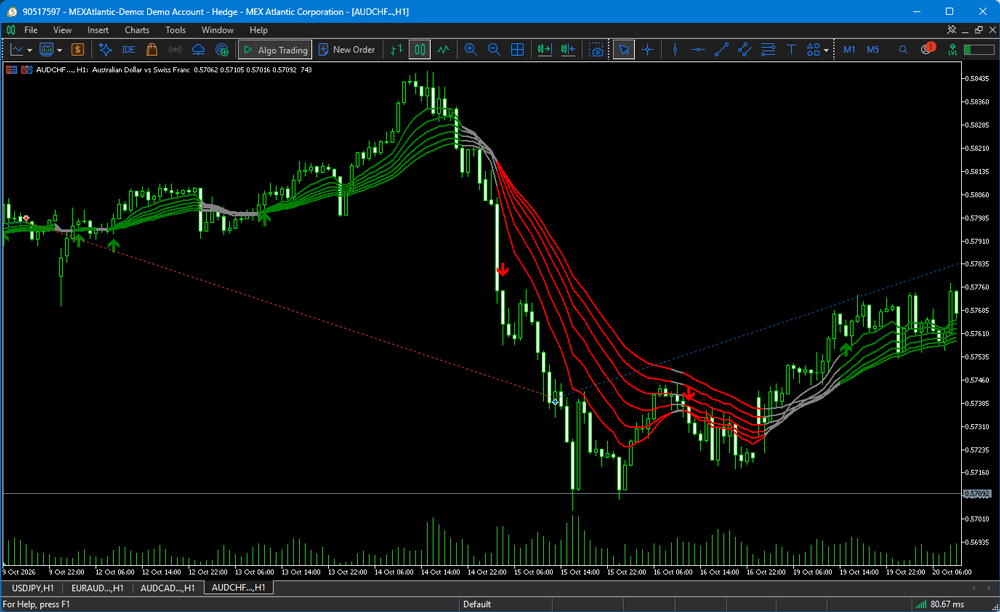
Check the appearance, change the inputs and switch timeframes. If your indicator uses a familiar calculation, compare it with an equivalent built-in indicator using matching settings. For signals and alerts, watch what happens during a forming candle and after it closes.
Build with Xen AI
Open the workspace, select Build Indicator and describe what you want to see on your chart. Launch Xen AI for MetaTrader 5