
When creating an advanced TradingView indicator, the process usually begins with a detailed specification that outlines the calculations, chart objects, colours, signals, and settings needed. However, with Xen AI for TradingView, you can take a much simpler approach: just use an image of the indicator you want to develop.
The demonstration video that is below illustrates the process of us uploading an image of a Smart Money Concepts indicator, using Xen's Prompt Builder to analyse it, and then creating a detailed development prompt. Xen subsequently generated a complete Pine Script v6 indicator consisting of hundreds of lines of code, compiled and checked the script as it was being developed, and finally produced a version which was published to TradingView without any compiler errors.
£5 Free Credit for New Users
New users currently receive £5 of free Xen AI credit. Xen uses pay-as-you-go pricing, so you only purchase additional credit when required. Try Xen AI for TradingView
How to Build a TradingView indicator from an image
An image can illustrate to you the visual outcome you are aiming to reproduce, showing the market structure as well as the highlighted areas, the labels, the lines and all the other chart elements. The challenging aspect lies in converting those visual cues into an exact Pine Script specification.
For this example we made use of Xen's Prompt Builder, which studied the image and assisted in creating a detailed prompt explaining how the indicator should behave. As a result, Xen had a much clearer specification before it began generating the Pine Script.
The Prompt Builder isn't necessary since Xen is able to produce indicators either from a standard written request or from an uploaded image, but it does become useful when the indicator is more complex and you want to specify the required behaviour in greater detail before development starts.
Creating an advanced Smart Money Concepts indicator
The example is more substantial than something as basic as a moving average or a crossover indicator since the aim was to recreate an advanced-style indicator based on Smart Money Concepts, featuring a number of chart elements and including enough logic to demonstrate how Xen deals with a larger Pine Script project.
When the requirements had been drawn up, Xen produced the indicator using Pine Script v6; the finished script consisted of hundreds of lines of code and contained the calculations, the logic for drawing, the settings, and the chart output necessary for reproducing the requested indicator.
A script of this scale would usually have to either be written and tested yourself or involve hiring a TradingView developer to carry out the development. According to the specific requirements and the extent of the testing needed, the development of a custom indicator can easily amount to hundreds of pounds. The cost of the Xen build in this demonstration, however, was only a few pennies due to the use of AI.
Xen checks the Pine Script while it builds
Creating a large block of Pine Script is only one part of the development process; syntax errors, the use of invalid Pine functions, and issues with chart objects can stop the script from compiling even if the trading logic is correct.
In this build, Xen compiled and verified the code at every stage of development instead of just producing the entire script and then leaving the user to discover the errors on their own. This meant that the problems could be detected and fixed as the indicator was being developed.
The Pine Script, when it was copied into TradingView and published, compiled without any errors.
The completed indicator in TradingView
The last thing to do is to test the indicator that has been generated on a TradingView chart. Although a successful compilation proves that the Pine Script is valid, it is still necessary to carry out visual testing when dealing with more advanced indicators. Make sure that the market structure, the levels, the zones, the labels and all the other chart objects appear in the expected locations and that the indicator works correctly for different symbols and timeframes.
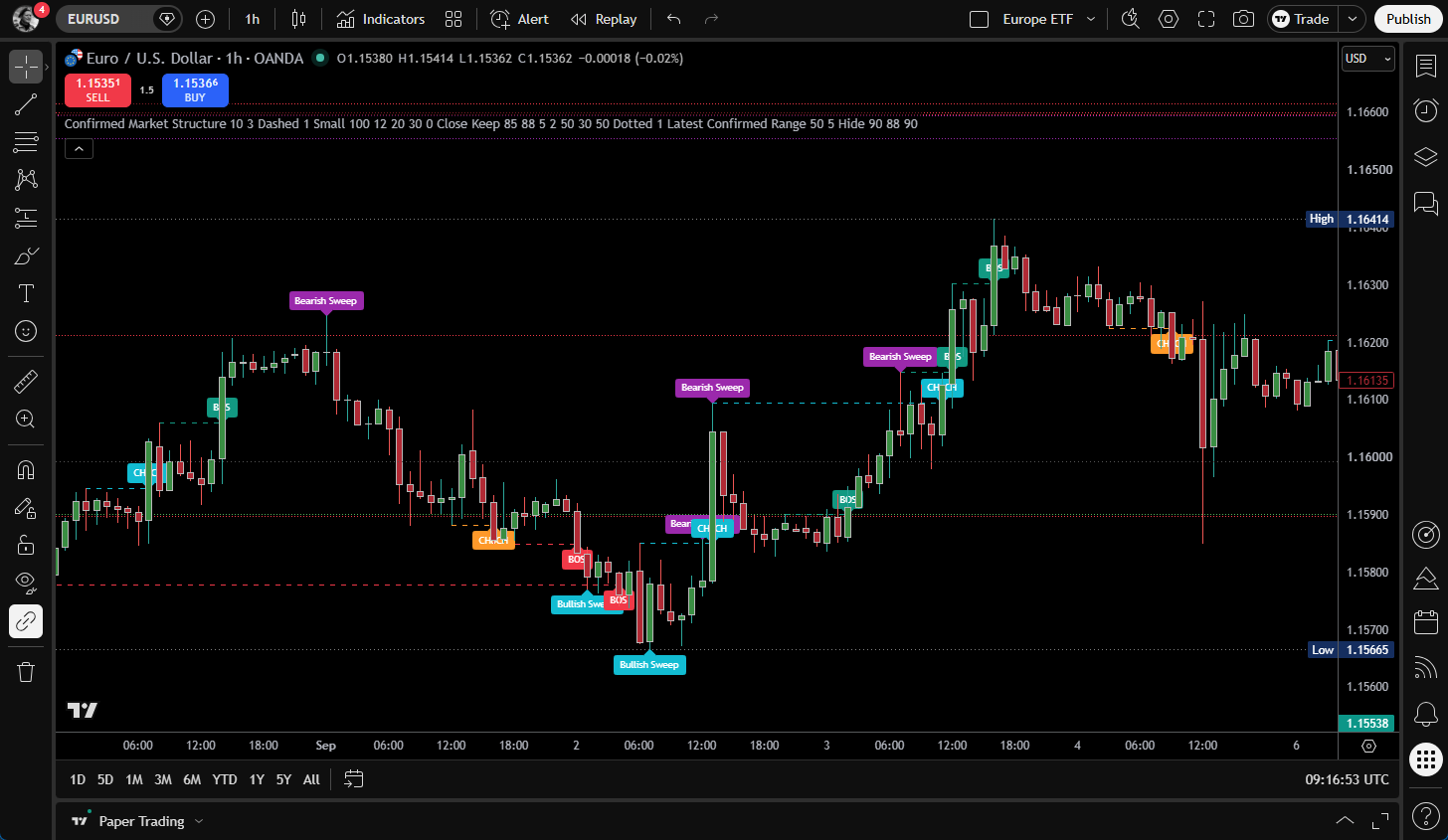
From an image to working Pine Script
This demonstration shows a different way of developing TradingView indicators. Instead of starting with a long technical specification, you can start with an image showing what the finished indicator should look like.
Xen can then use the image, your written instructions, and, when required, the Prompt Builder to turn the idea into a detailed specification and generate the Pine Script. For more complex projects, you can build and check the script progressively before testing the final version in TradingView.
You can use the same workflow for many types of TradingView indicators, including market structure tools, support and resistance indicators, trend systems, volatility tools, dashboards, signal indicators, and custom visual studies.