
If you have an idea for a custom TradingView indicator, the difficult part is often turning that idea into working Pine Script. You may know exactly what you want to see on the chart but not know how to write the calculations, plots and inputs needed to build it.
In this example, we use Xen AI for TradingView to build an indicator around three familiar tools: EMA, RSI and MACD. The point of the demonstration is not the indicators themselves, but the process. We describe what we want, Xen creates the Pine Script v6 source, and we then take the finished code into TradingView and test it on a real chart.
£5 Free Credit for New Users
New users currently receive £5 of free Xen AI credit. Xen uses pay-as-you-go pricing, so you don't have a monthly subscription to maintain when you are not using it. Try Xen AI for TradingView
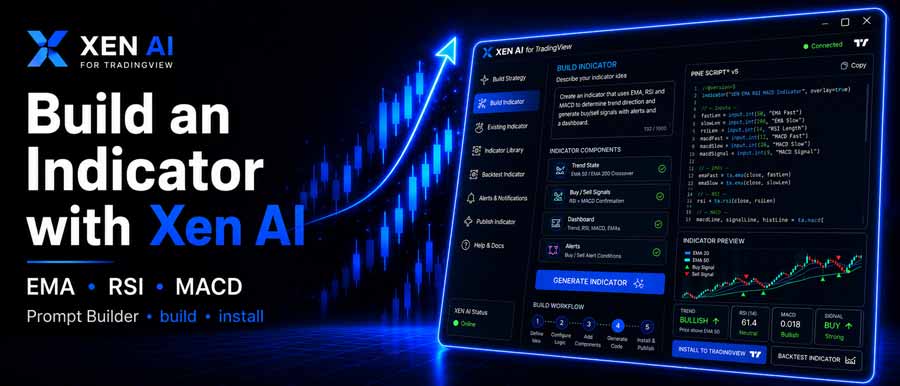
Describe the indicator you want
You do not need to describe Pine Script syntax or tell Xen which functions to call. The useful information is what the indicator should actually do: which calculations it uses, what should be plotted, what should trigger a signal and which settings should be configurable.
You can often create a relatively simple indicator from a short instruction. If the idea has several conditions or needs more thought before coding starts, the Prompt Builder can help turn the original idea into clearer requirements. You can review those requirements before asking the coding model to generate anything.
For the video example, EMA, RSI and MACD give us enough different calculations to show how Xen combines several pieces of trading logic into one custom indicator rather than simply reproducing a standard built-in study.
Export to TradingView
Xen returns the complete Pine Script source, so you can inspect it before using it. Copy the generated code into TradingView's Pine Editor, compile it and add the indicator to a chart just as you would with code you had written yourself. This is an important part of the process. An AI response is not the finished job just because it generated code. You still need to see how the indicator behaves on a chart, check that its plots and signals correspond with the original idea, and decide whether anything needs changing.
If TradingView reports a compiler error, you can bring the source and error back into Xen's repair workflow. You can also continue working on the same project if the code compiles, but you decide the indicator needs another filter, different visual behaviour or an additional input.
Most custom indicators evolve once you see them on a chart. You might want to alter an EMA period, add another condition to a signal, change how something is plotted or introduce an alert. Xen keeps the existing project available, so you can make these changes against the current source instead of generating another indicator from scratch.
That makes the workflow closer to normal software development. The first version gets the idea onto the chart, and subsequent requests refine it. Previous project history is also useful if an experiment does not work out and you want to return to an earlier version.
Watch the indicator being built
The video below shows the process using an EMA, RSI and MACD indicator. It is a useful example if you have never created a TradingView indicator before because you can see the journey from the original instruction through to generated Pine Script and the finished indicator running in TradingView.
You can use the same process for considerably more than conventional technical indicators. A request could involve chart signals, session levels, dashboards, trend filters, support and resistance, drawing objects, alerts or a combination of several ideas. What matters is describing the behaviour clearly enough for the coding model to understand what you are trying to build.
Xen uses a pay-as-you-go credit system, so you can use it when you actually have an indicator to create, change or repair rather than maintaining another software subscription. The generated Pine Script remains available for you to inspect and continue developing in TradingView.